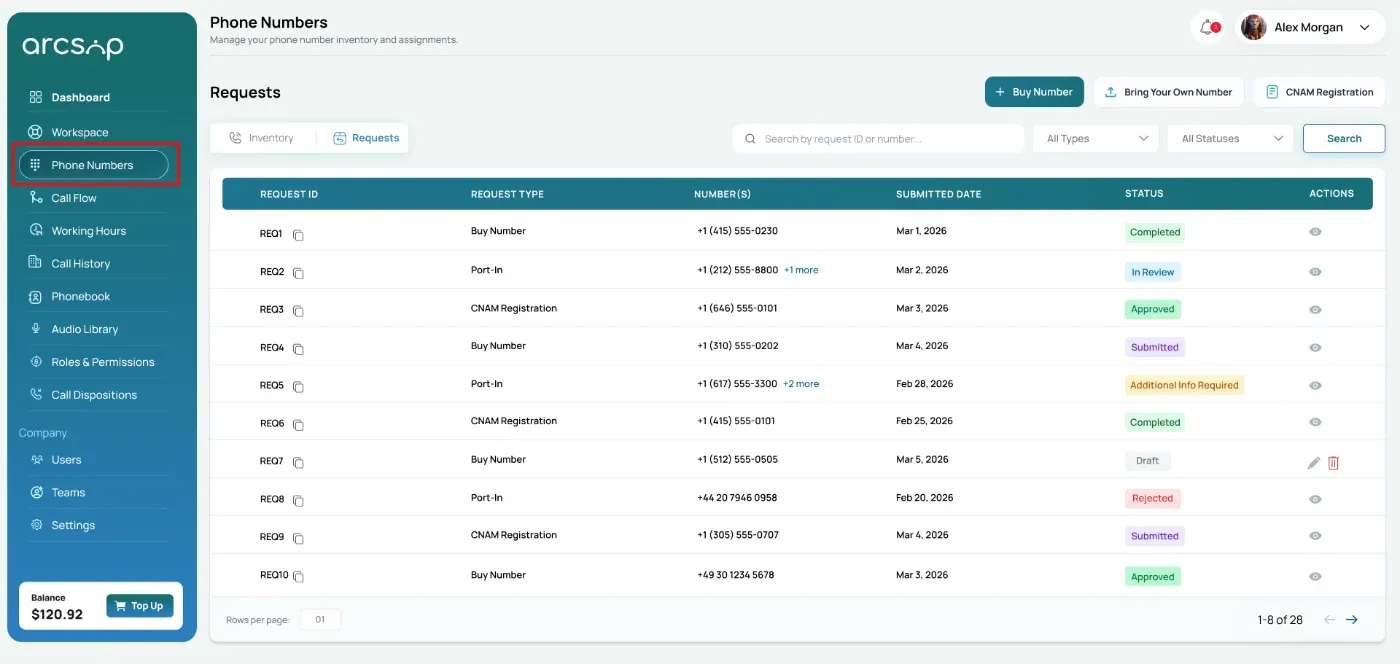

Search & Filter Your Requests
Use search and filters to quickly find specific requests and track their status.
- To find a specific request or number: Enter a Request ID or phone number in the search bar, then click Search.
Filter Requests by Type and Status: Use the dropdown filters to refine results — filter by request type, filter by status, then click Search to apply.
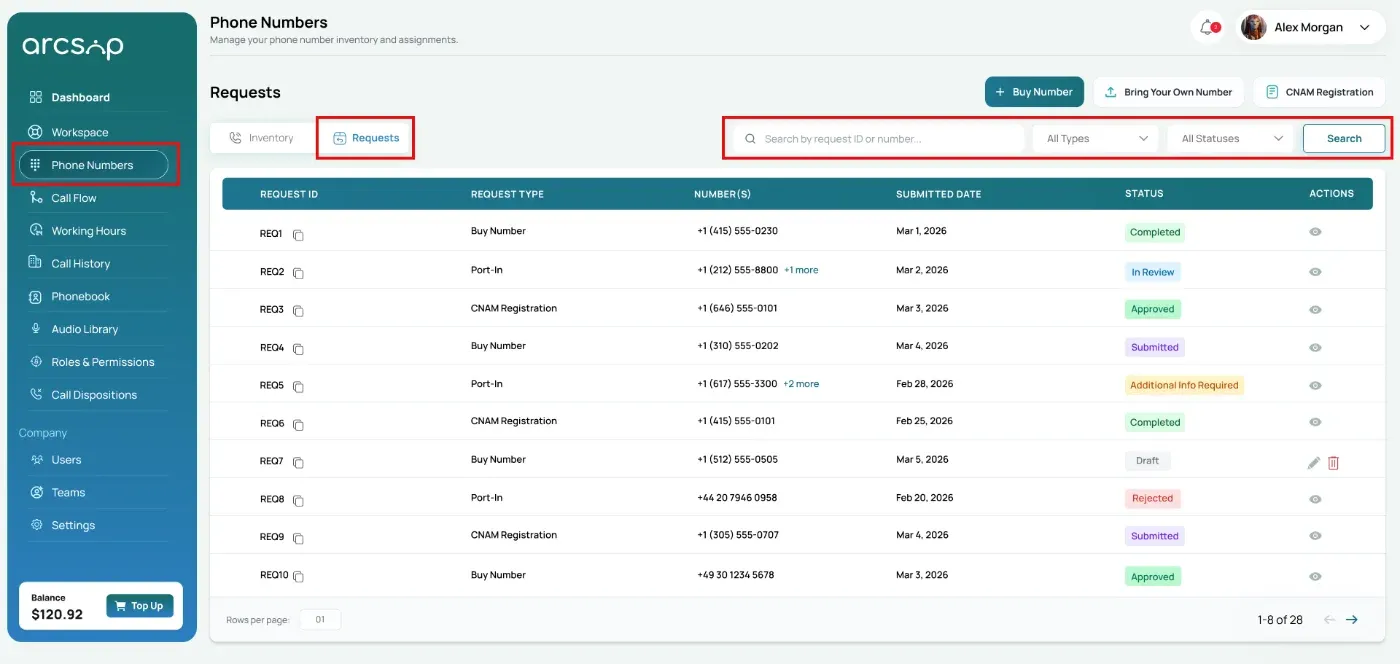
Note: The Requests table will show the results that match your search or filter.
Requests Table Overview
The Requests table displays each request with key information for easy tracking and management:
- Request ID: A unique identifier for each request (e.g. REQ1, REQ2) with a copy option for quick use
- Request Type: The type of request such as Buy Number, Port-In, or CNAM Registration
- Number(s): Phone number(s) linked to the request; multiple numbers are grouped with a "+more" indicator
- Submitted Date: The date the request was submitted
- Status: Shows the current progress of the request
| Submitted | Request has been submitted and is awaiting review |
| In Review | Request is currently being reviewed by the team |
| Approved | Request has been approved and is being processed |
| Completed | Request has been fully completed |
| Draft | Request is saved but not yet submitted |
| Additional Info Required | More details are needed to proceed |
| Rejected | Request has been declined |