

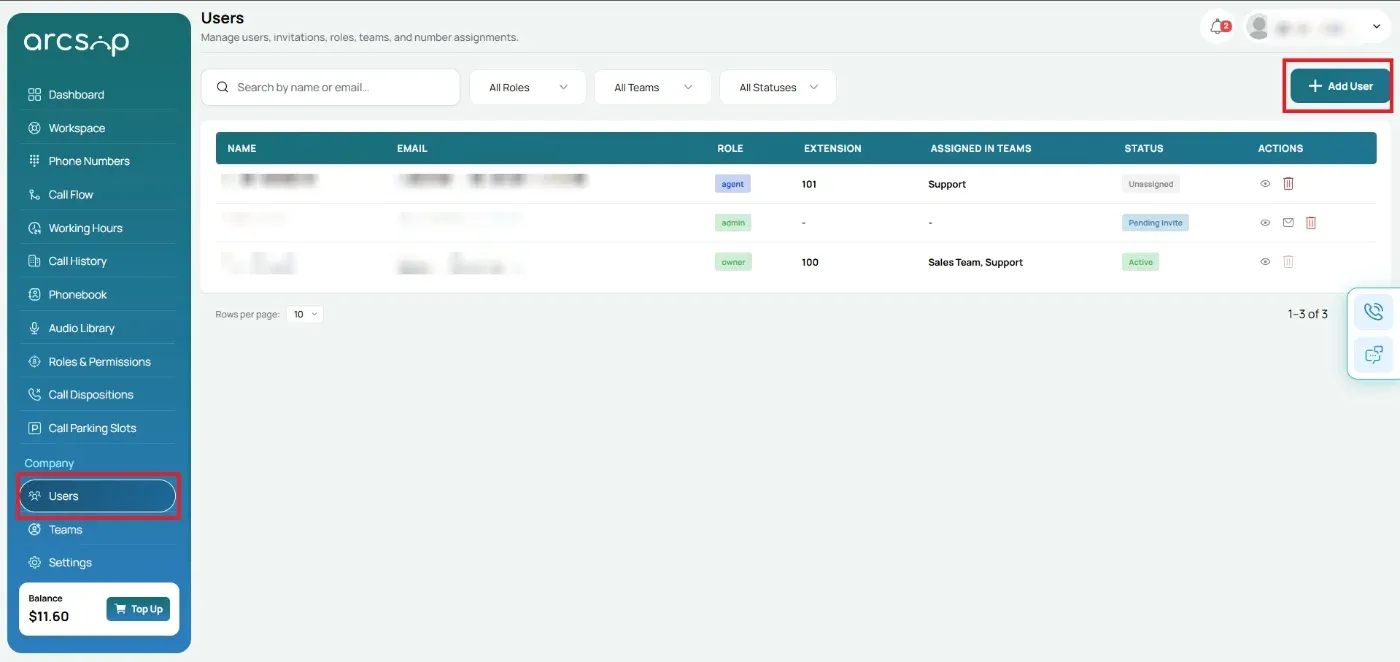
From the left menu, click Users to open the Users Management page.
Send an Invitation
Click Add User in the top-right corner.
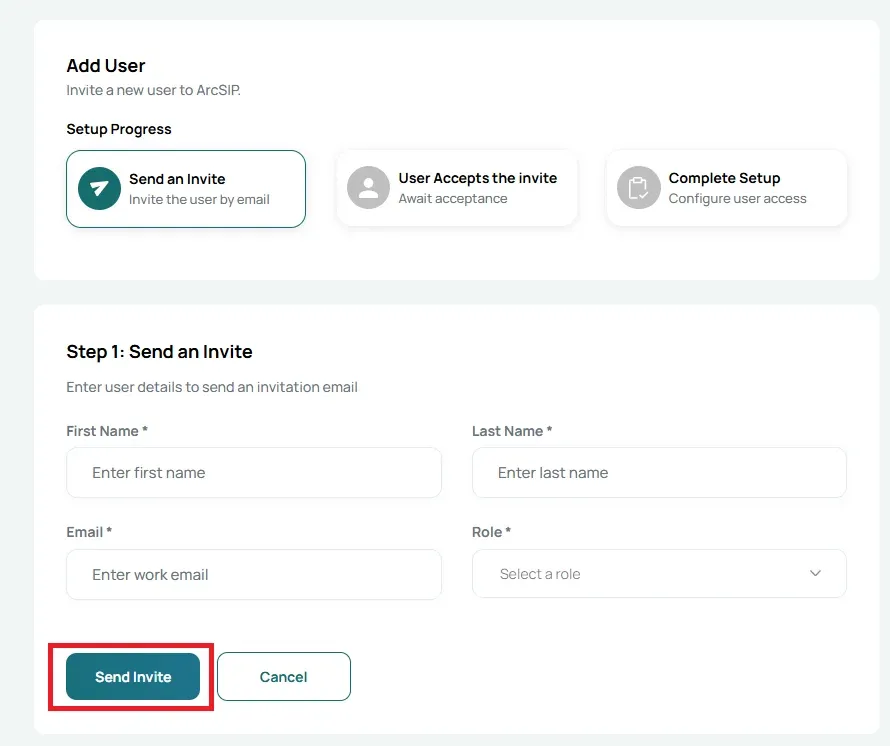
Enter the following user details:
- First Name: The user's first name.
- Last Name: The user's last name.
- Email: Enter the user's work email address using your organization's email domain.
- Role: Select the appropriate role for the user.
Click Send Invite to send an invitation email to the user.
An invitation email will be sent to the specified email address. The user must accept the invitation to access ArcSIP.
User Accepts the Invitation
After the invitation is sent, the user will appear with a Pending Invite status.
The invitation details display the invite status, the email address the invitation was sent to, and the date and time it was sent.
Available Actions
- Resend Invite: Send a new invitation email if the user has not received or accepted the original invitation.
- Cancel Invite: Revoke the invitation before it is accepted.
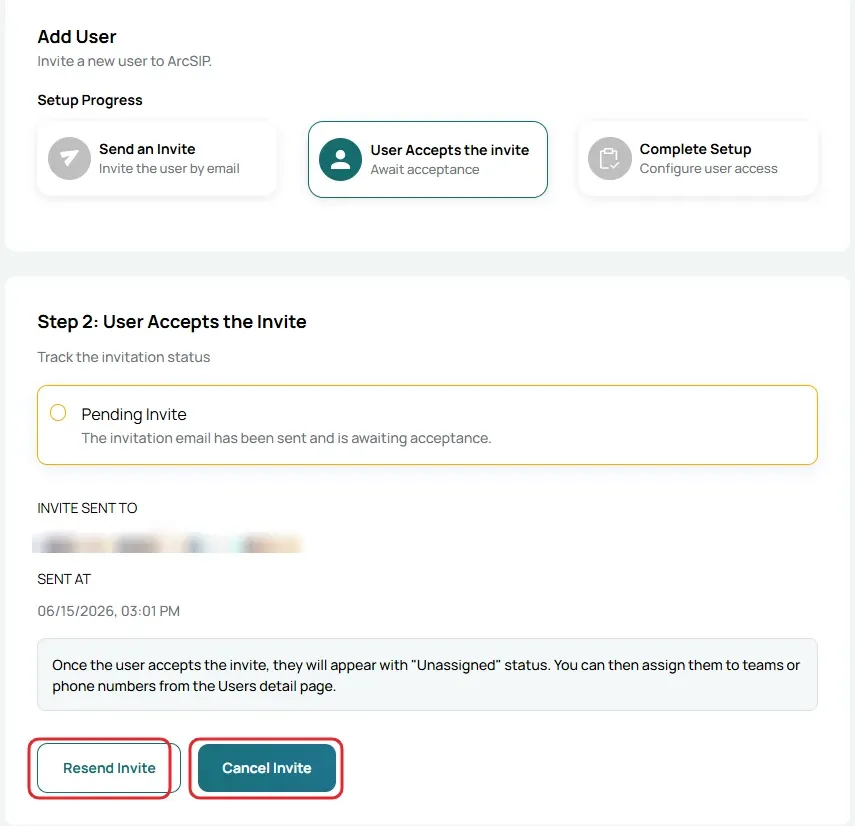
Once the user accepts the invitation, their status will change to Unassigned, indicating that the account has been created but is not yet assigned to a team or phone number.
Complete User Setup
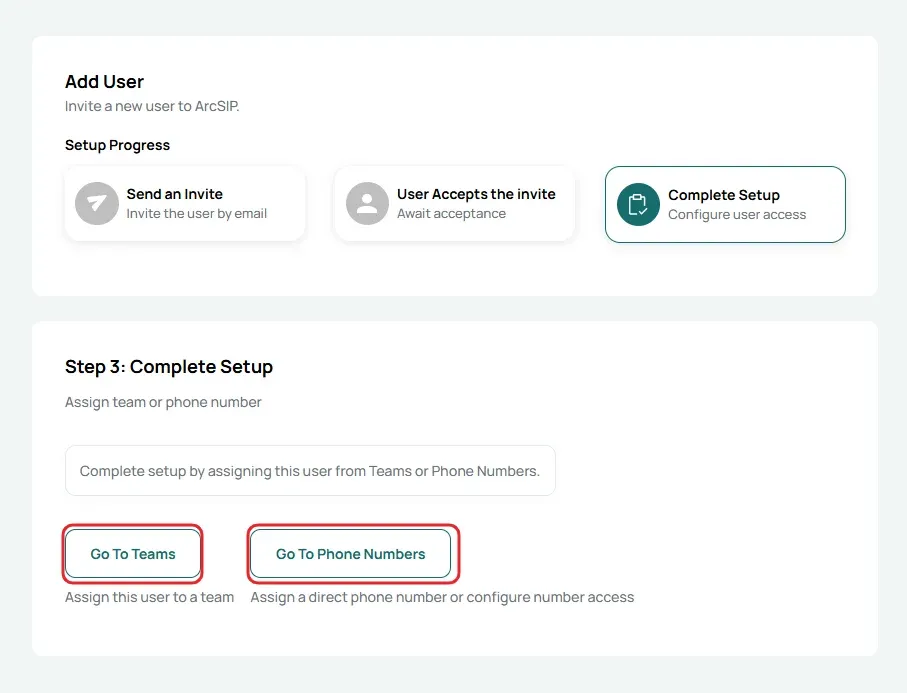
After the invitation is accepted, complete the user setup by assigning the user to a team or phone number.
Assign the User to a Team
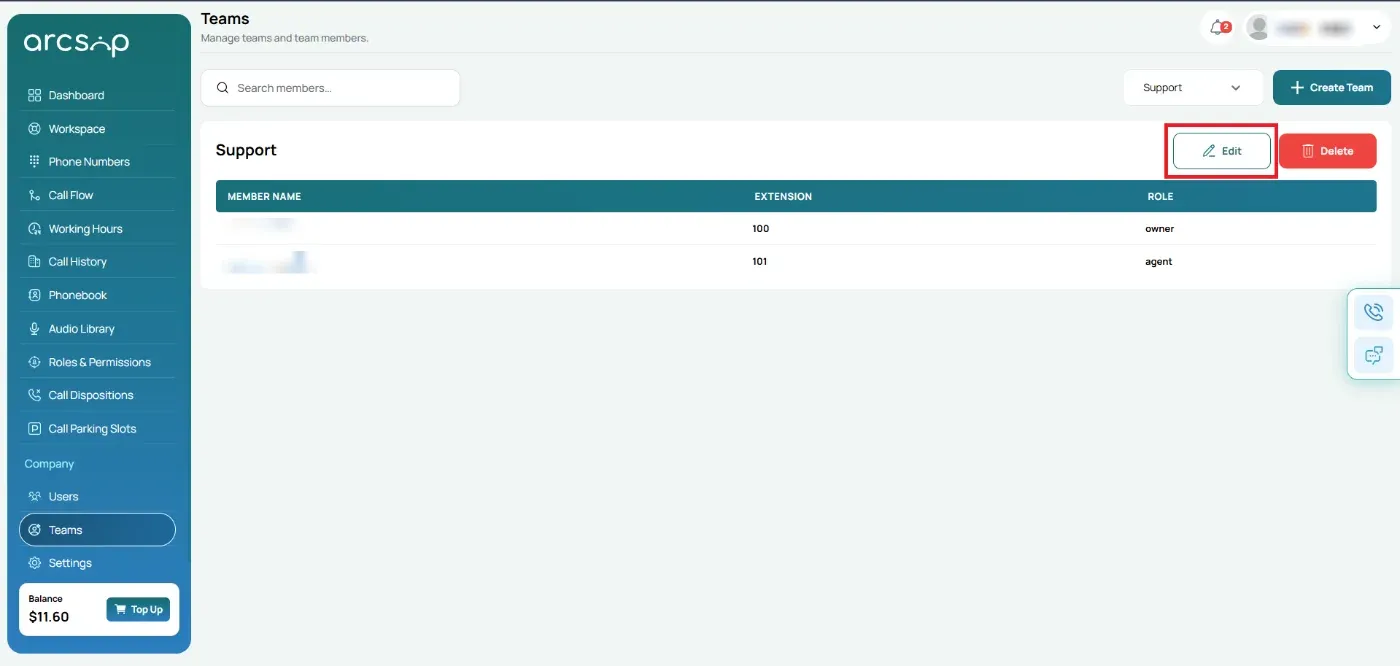
- Click Go to Teams. You will be redirected to the Teams Management page.
- Use the search or filter options to find the team you want to assign the user to.
- Locate the team and click Edit.
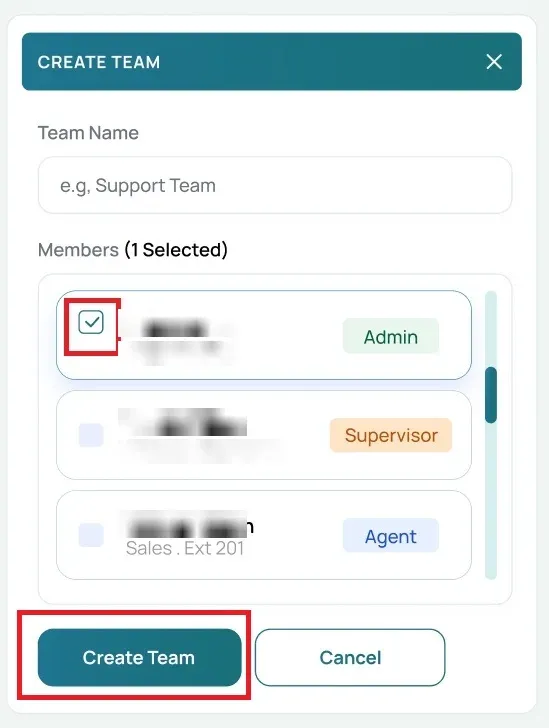
- In the Members section, select the new user you want to add to the team.
- Click Save Changes to update the team.
Assign a Phone Number to a New User
- Click Go to Phone Numbers to assign a phone number to the new user. You will be redirected to the Phone Numbers page.
- Use search or filters to quickly find the required phone number. In the Actions column, click the Edit button.
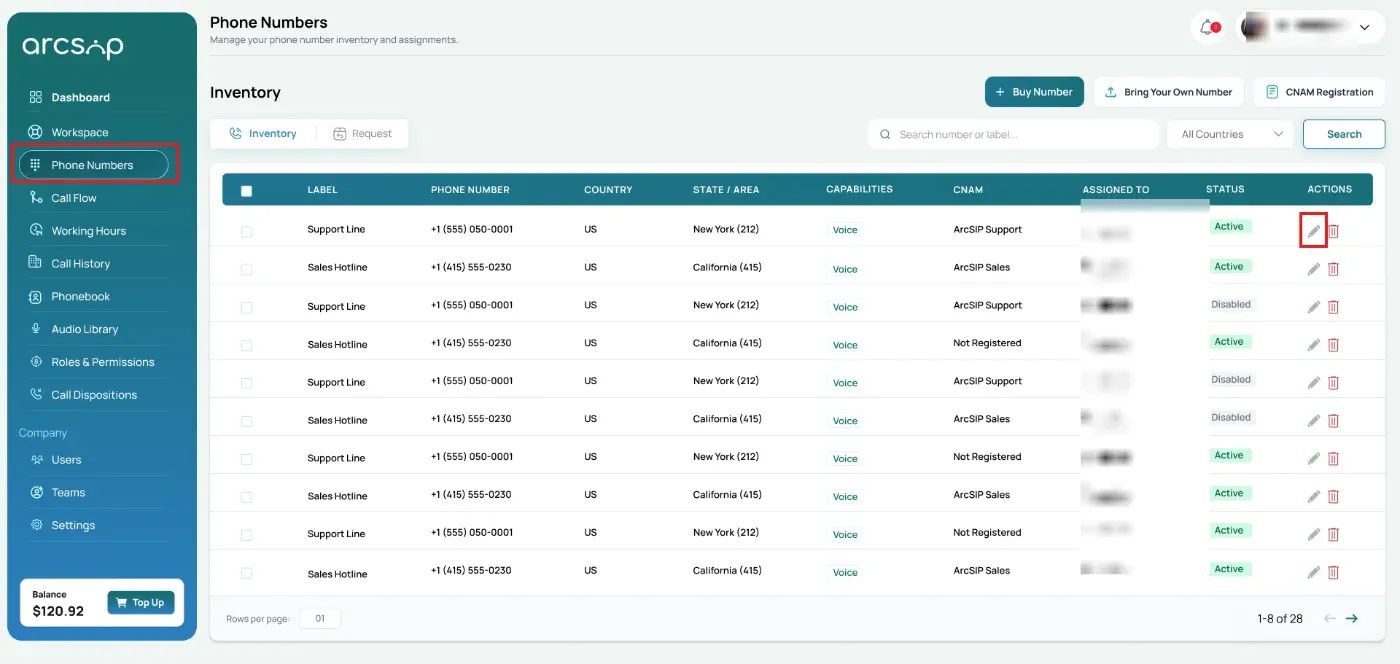
Click the 'User & Team' tab. To assign a user, click the Assign User dropdown and select the desired user.
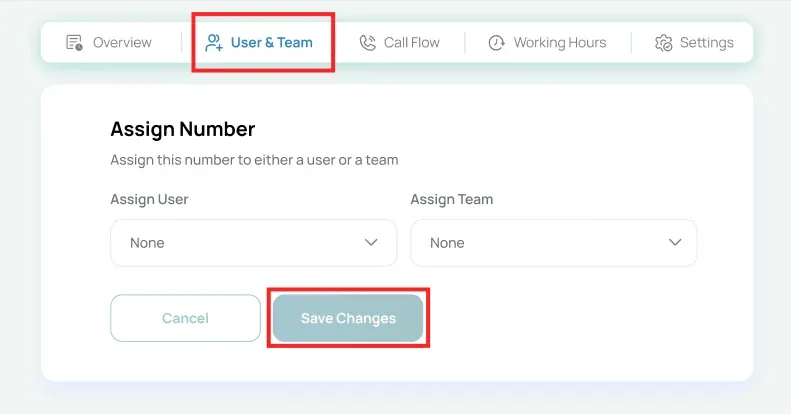
Click Save Changes, and the phone number is assigned to the selected user.